
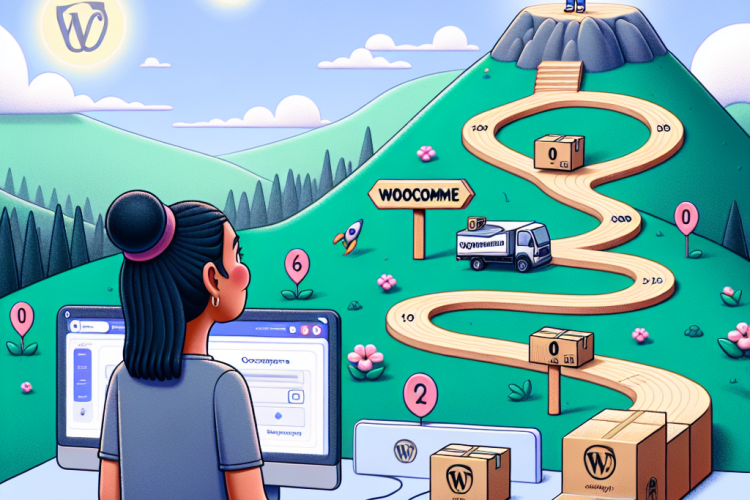
In today’s e-commerce landscape, WooCommerce has emerged as one of the leading platforms for creating and managing online stores.
With its user-friendly interface, robust features, and seamless integration with WordPress, it’s no wonder that many entrepreneurs are turning to it as their go-to solution.
This article aims to guide you through the entire process of setting up your WooCommerce store, from the initial setup to becoming a shipping hero.
Understanding WooCommerce
WooCommerce is an open-source e-commerce plugin designed for WordPress. It’s tailored for small to large-sized online merchants and provides a comprehensive set of features that supports various functionalities necessary for running an online store.
With WooCommerce, you can sell both physical and digital products, manage inventory, process payments, and handle shipping logistics.
The platform is highly extensible, meaning you can enhance its capabilities with a wide range of plugins and themes to create a unique shopping experience for your customers.
Setting Up Your WooCommerce Store
Step 1: Choose a Hosting Provider
Before you can start using WooCommerce, you’ll need to choose a hosting provider for your WordPress site. Some popular choices include:
- Bluehost
- SiteGround
- WP Engine
Look for a provider that offers one-click WordPress installation, solid customer support, and scalability options to accommodate your growth.
Step 2: Install WordPress
Once you’ve signed up with a hosting provider, follow their instructions to install WordPress. Most providers offer a simple one-click installation process.
Step 3: Install WooCommerce
After installing WordPress, log in to your dashboard. Navigate to Plugins > Add New. Search for “WooCommerce,” and click Install Now. Once installed, click Activate to enable the plugin.
Step 4: Configure WooCommerce Settings
After activation, WooCommerce will prompt you to run the setup wizard. Here, you’ll configure essential settings such as:
- Store Location
- Currency
- Payment Methods
- Shipping Options
Take your time during this step to ensure all settings reflect your business model.
Adding Products to Your Store
Step 1: Adding Simple Products
To add your first product, navigate to Products > Add New. Input the product title, description, and pricing information. Be sure to add high-quality images to entice customers.
Step 2: Adding Variable Products
If your products come in different variations (sizes, colors, etc.), select the Variable product option. Each variation can have its own price, SKU, and stock level.
Step 3: Organizing Products with Categories and Tags
Organizing your products into categories and tags makes it easier for customers to find what they’re looking for. You can create unique categories and apply multiple tags to each product.
Enhancing Your Store with Themes and Plugins
Choosing the Right Theme
A suitable theme is crucial for the visual appeal of your store. There are many themes optimized for WooCommerce, both free and premium. Popular choices include:
- Astra
- OceanWP
- Flatsome
Choose a responsive theme that looks good on all devices, as mobile shopping continues to grow.
Extending Functionality with Plugins
WooCommerce’s true power lies in its extensibility. Here are some must-have plugins:
- Yoast SEO: Improve your store’s SEO for better visibility.
- WooCommerce Payments: Integrate various payment gateways seamlessly.
- WooCommerce Shipping: Streamline your shipping process.
- Mailchimp for WooCommerce: Grow your email list and automate campaigns.
Explore the WooCommerce Marketplace for additional plugins that suit your business needs.
Shipping Setup: From Beginner to Shipping Hero
Understanding Shipping Options
Shipping is a critical aspect of e-commerce that can affect customer satisfaction. In WooCommerce, you can offer various shipping options, including:
- Flat Rate Shipping
- Free Shipping
- Local Pickup
- Real-Time Carrier Rates
Assess your target audience to determine the best shipping strategies for your store.
Step 1: Setting Up Shipping Zones
Navigate to WooCommerce > Settings > Shipping. Here, you can create shipping zones based on locations you plan to ship to. Each zone can have its own shipping methods and rates.
Step 2: Configuring Shipping Methods
Within each shipping zone, select which shipping methods you want to offer. For example, you can set a flat rate for domestic orders and real-time rates for international orders.
Step 3: Utilizing Shipping Calculators
Enable shipping calculators on the cart page to provide customers with real-time shipping quotes. This transparency contributes positively to customer experience.
Step 4: Automating Shipping Processes
To save time and reduce errors, consider automating your shipping processes using WooCommerce Shipping. This feature allows you to print shipping labels directly from your dashboard.
Step 5: Tracking Orders and Updating Customers
Order tracking is essential in the e-commerce space. When a customer places an order, send them an email confirmation with tracking information. This transparency fosters trust and improves customer satisfaction.
Marketing Your WooCommerce Store
Search Engine Optimization (SEO)
Invest time in optimizing your store for search engines. This includes:
- Keyword research to find relevant terms for your products.
- Writing product descriptions that are both engaging and optimized.
- Utilizing alt tags for images to improve visibility.
Leveraging Social Media
Use social media platforms to promote your products. Create content that resonates with your target audience and drives traffic to your store. Engage with your followers to build a community around your brand.
Utilizing Email Marketing
Email marketing can be an effective way to keep your customers informed about new products, promotions, or blog posts. Implement an email capture strategy on your site to grow your list.
Measuring Your Success
Analytics and Reporting
Use WooCommerce’s built-in analytics to track sales, customer behavior, and conversion rates. This data is invaluable for making informed business decisions.
Common Challenges and Solutions
As with any platform, WooCommerce comes with its challenges. Here are common issues you may encounter and how to solve them:
- Slow Site Speed: Optimize images and use caching plugins to improve load times.
- Payment Gateway Issues: Ensure that payment gateways are compatible with your setup and test them regularly.
- Inventory Management: Use inventory management plugins to keep track of stock levels effectively.
Conclusion
Transitioning from a beginner to a proficient WooCommerce user is a journey filled with learning and growth.
By understanding the foundational elements of setting up an online store, optimizing shipping processes, and implementing marketing strategies, you will not only enhance your technical skills but also improve customer satisfaction and increase sales.
Remember that consistency is key, and as you continue to grow and adapt, your WooCommerce store can become a thriving online business.
Embrace the journey towards becoming a shipping hero, and you will pave the way for your e-commerce success!



0 Comments