
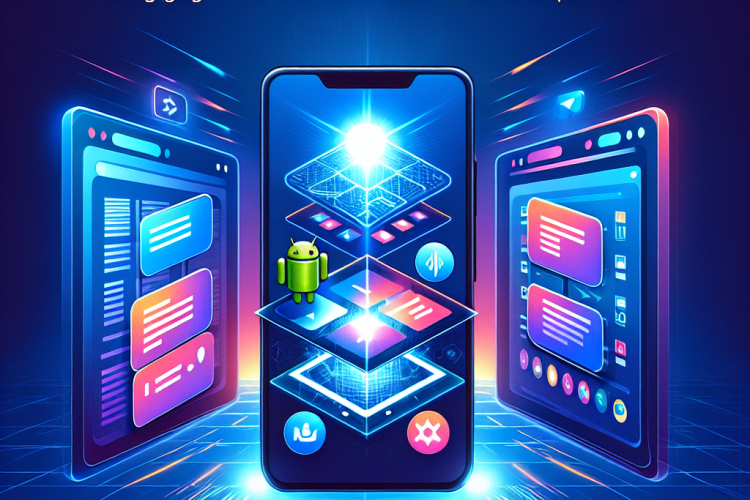
In the rapidly evolving world of mobile applications, businesses and developers are constantly seeking efficient ways to create applications that cater to both Android and iOS platforms. Hybrid apps offer an attractive alternative by combining the best aspects of web and native applications. This article delves into the development of hybrid apps using Android WebView, providing a comprehensive guide on how to leverage this powerful tool to build seamless user experiences.
Understanding Hybrid Applications
A hybrid app is essentially a web application enclosed within a native app shell. It uses web technologies like HTML, CSS, and JavaScript while retaining the capabilities of native devices and platforms. By incorporating a web view within a native app, developers can offer web functionality alongside native features, making hybrid apps versatile and cost-effective solutions.
Why Choose Hybrid Apps?
- Cost Efficiency: Hybrid apps allow for cross-platform development, reducing the need to code separately for Android and iOS.
- Faster Development: Leveraging a single codebase for multiple platforms speeds up the development process.
- Access to Device Features: Through plugins and APIs, hybrid apps can access native device capabilities such as camera, GPS, and notifications.
Introduction to Android WebView
Android WebView is a system component that powers the web content within Android apps. It acts as a simplified browser, rendering web pages inside applications without redirecting users to a separate browser. This integration allows developers to incorporate web-based functionalities within their native apps seamlessly.
Key Features of Android WebView
- Supports HTML, CSS, and JavaScript.
- Offers full control over web content rendering.
- Enables interaction with web pages through JavaScript interfaces.
- Integrates with native app components for enhanced functionality.
Setting Up Android WebView
Before leveraging Android WebView, you need to set up your development environment and configure your app accordingly. Here’s a step-by-step guide:
1. Install Android Studio
Begin by downloading and installing Android Studio, the official Integrated Development Environment (IDE) for Android development.
2. Create a New Project
Launch Android Studio and create a new project. Configure your project settings, including application name, package name, and target Android devices.
3. Add WebView to Your Layout
Open the XML layout file where you want to include the WebView. Add the following code within your layout:
<WebView

    android:id="@+id/webview"

    android:layout_width="match_parent"

    android:layout_height="match_parent" />
4. Configure WebView in Your Activity
In your activity’s Java or Kotlin file, reference the WebView and configure its settings. You can do this by including the following code:
WebView webView = (WebView) findViewById(R.id.webview);

webView.setWebViewClient(new WebViewClient());

webView.getSettings().setJavaScriptEnabled(true);

webView.loadUrl("https://www.example.com");
This code initializes the WebView, enables JavaScript, and loads a web page.
Enhancing User Experience with WebView
Creating a seamless user experience requires careful consideration of both design and functionality. Android WebView offers several enhancements to ensure a smooth integration:
Custom WebView Clients
By extending the WebViewClient and WebChromeClient classes, you can customize the behavior and appearance of web pages within your app. This includes handling redirects, SSL errors, and more.
JavaScript Interfaces
Use JavaScript interfaces to enable communication between JavaScript and native code. This allows you to call native functions from web content, bridging the gap between web and native functionalities.
webView.addJavascriptInterface(new Object() {

    @JavascriptInterface

    public void showToast(String message) {

        Toast.makeText(context, message, Toast.LENGTH_LONG).show();

    }

}, "Android");
Responsive Design
Ensure that your web content is responsive and adapts to different screen sizes and orientations. Use CSS media queries and flexible layouts to achieve this.
Security Considerations
Security is a critical aspect of mobile app development. When using WebView, it’s essential to adhere to best practices to safeguard user data and app integrity.
Enable Safe Browsing
Android WebView supports Safe Browsing, which warns users about potential security threats. Enable this feature by adding the following configuration:
webView.getSettings().setSafeBrowsingEnabled(true);
Validate URLs
Always validate URLs before loading them into the WebView. Restrict navigation to trusted sources to prevent phishing attacks and malicious content.
Disable File Access
Disable access to files within the WebView to prevent unauthorized data access:
webView.getSettings().setAllowFileAccess(false);

webView.getSettings().setAllowContentAccess(false);
Performance Optimization
For optimal performance, it’s crucial to fine-tune the WebView settings and resources. Here are practical tips to enhance performance:
Cache Management
Implement persistent caching strategies to reduce load times and improve user experience. Enable caching with:
webView.getSettings().setCacheMode(WebSettings.LOAD_CACHE_ELSE_NETWORK);
Optimize Media Loading
Prioritize media loading and apply strategies like lazy loading to minimize initial load times and bandwidth usage.
Reduce JavaScript Execution
Minimize unnecessary JavaScript execution by deferring scripts and optimizing code for efficient performance.
Challenges and Solutions
While Android WebView is a powerful tool, developers may encounter several challenges during the development process. Understanding these challenges and their solutions is key to building robust hybrid apps.
Compatibility Issues
WebView rendering can vary across different Android versions and devices. Regular testing and using polyfills can mitigate compatibility issues.
Limited Access to Native Features
While hybrid apps can access many native features, some may be restricted. Utilize plugins and third-party libraries to extend functionality where possible.
User Interface Consistency
Ensuring a consistent look and feel across different platforms can be challenging. Implement a unified design system to achieve visual and functional consistency.
Future Trends in Hybrid App Development
The landscape of hybrid app development is continuously evolving. Here are some trends shaping its future:
Progressive Web Apps (PWAs)
PWAs are gaining traction for offering app-like experiences directly from the browser. Hybrid apps can integrate PWA elements to enhance performance and offline capabilities.
Enhanced Plugins and Tools
As the development community expands, more advanced plugins and tools are emerging, facilitating easier access to native features and improving the developer experience.
Focus on UX/UI
Emphasizing exceptional user experience and intuitive interfaces will remain a priority, driving innovation in design and interaction models.
Conclusion
Hybrid apps, powered by tools like Android WebView, present an enticing solution for developers looking to create cost-effective and efficient cross-platform applications. By combining web technologies with native capabilities, hybrid apps deliver a harmonious blend of functionality and performance. As technology continues to advance, the possibilities for hybrid app development will only expand, offering exciting opportunities for innovation and growth.


0 Comments