
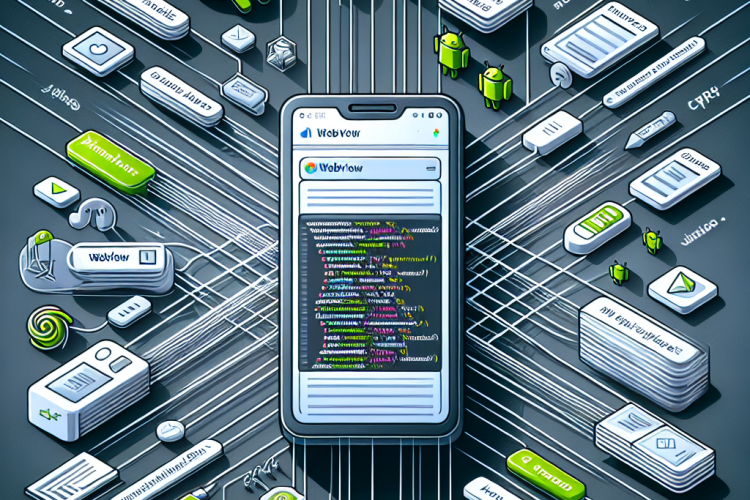
In the modern era of application development, developers are often challenged to create versatile and responsive applications that meet the demands of technologically savvy users. One tool that has proven indispensable for embedding web content within Android applications is the WebView component. Leveraging the functionality of WebView, developers can load web pages, display HTML content, and even execute JavaScript inside their mobile apps, creating a bridge between native applications and the web. In this article, we will delve into how WebView operates within Android Studio, exploring its features, uses, and the benefits of its implementation.
Understanding WebView
WebView is a view that displays web pages inside your application. It is based on the WebKit rendering engine, which is configurable through different settings and methods, allowing you to adapt the web content to fit seamlessly within your app. Ideal for presenting content that is already hosted on the web, WebView serves as a flexible solution to enrich your app’s functionality without the need to develop full web pages from scratch.
WebView comes pre-installed in Android devices and can be utilized in your app using a simple declaration in the activity_main.xml layout file. Here’s a basic example:
<WebView

    android:id="@+id/webview"

    android:layout_width="match_parent"

    android:layout_height="match_parent" />
Setting Up WebView in Android Studio
To incorporate WebView into your Android application, you need to add it to your project and set certain configurations. Here’s a step-by-step guide:
Step 1: Adding WebView to Layout
Open your activity_main.xml and add the WebView element as shown above. This creates a space in your layout where web content will be displayed.
Step 2: Reference WebView in Your Activity
In your main activity, you need to create an instance of WebView and connect it to the UI defined in the XML file:
WebView myWebView = findViewById(R.id.webview);
Step 3: Load a URL
You can now load a web page using the loadUrl() method:
myWebView.loadUrl("https://www.example.com");
Ensure you have internet permission in your AndroidManifest.xml to allow WebView to access web content:
<uses-permission android:name="android.permission.INTERNET" />
Step 4: Enable JavaScript
For enhanced functionality, such as interacting with JavaScript, enable it in WebView settings:
WebSettings webSettings = myWebView.getSettings();

webSettings.setJavaScriptEnabled(true);
Advanced WebView Features
WebView offers several advanced features that can be leveraged to integrate web content seamlessly within your app:
Handling Navigation
Override WebViewClient’s methods to manage internal navigation and respond to events:
myWebView.setWebViewClient(new WebViewClient() {

    @Override

    public boolean shouldOverrideUrlLoading(WebView view, String url) {

        view.loadUrl(url);

        return true;

    }

});
This ensures links clicked within WebView are opened in the same window rather than a separate browser.
Progress Monitoring
Loading web pages can take time, so monitoring progress can enhance user experience. Override onPageStarted and onPageFinished:
myWebView.setWebViewClient(new WebViewClient() {

    public void onPageStarted(WebView view, String url, Bitmap favicon) {

        // Code to show loading progress

    }
public void onPageFinished(WebView view, String url) {

        // Code to hide loading progress

    }

});
Error Handling
Implement onReceivedError to gracefully handle errors while loading content:
@Override

public void onReceivedError(WebView view, WebResourceRequest request, WebResourceError error) {

    // Display error message

}
Security Considerations
When dealing with web content, security is paramount. Here are some considerations:
- Restrict JavaScript: Enable JavaScript only if necessary and ensure all JavaScript interactions are secure.
- Validate URLs: Perform checks on URLs being loaded to prevent malicious content.
- Enable Safe Browsing: Use
WebSettingsto enable Chrome’s Safe Browsing feature. - Use SSL: Ensure URLs use HTTPS to encrypt data transmitted between the app and web server.
Follow Google’s security guidelines for WebView to mitigate risks. Regular updates and patches to WebKit ensure potential vulnerabilities are addressed.
Use Cases for WebView
WebView is a versatile component with several practical applications:
Displaying Third-Party Content
If your application needs to display content from third-party websites, WebView serves as an excellent solution, reducing development time while integrating external resources.
In-App Browsers
Apps often require in-app browsers to enhance user experience by maintaining their customers within the app while browsing web content. WebView can seamlessly serve this purpose.
Hybrid Applications
Hybrid applications, which blend web technologies with native features, heavily rely on WebView for rendering web components inside a native shell, offering a unified user experience.
Rendering Dynamic Content
Use WebView to display dynamic content stored on a server, like user profiles or app-specific information, that requires regular updates without needing app updates from the app store.
Challenges and Limitations
Despite its benefits, using WebView also presents challenges:
- Performance: WebView may not perform as well as a native application or browser, particularly with complex web pages or intensive JavaScript.
- Compatibility Issues: Different Android versions and device configurations can lead to inconsistencies in WebView behavior.
- Resource Consumption: WebView can be resource-intensive, potentially affecting the overall performance of your app.
- Dependency on Internet: Web applications require an internet connection, which might not always be available to users.
Conclusion
WebView is a powerful tool for Android developers seeking to integrate web capabilities into their applications. Understanding how to implement and optimize WebView within Android Studio allows you to harness the power of the internet, blending native and web-based content seamlessly. While its deployment demands careful consideration of performance and security implications, its robust functionality and ease of use make WebView an invaluable component in modern app development.
By following best practices, such as securing web content and maintaining optimal loading times, developers can effectively utilize WebView to expand their app’s capabilities, providing enriched user experiences that align with evolving digital consumption patterns.



0 Comments